
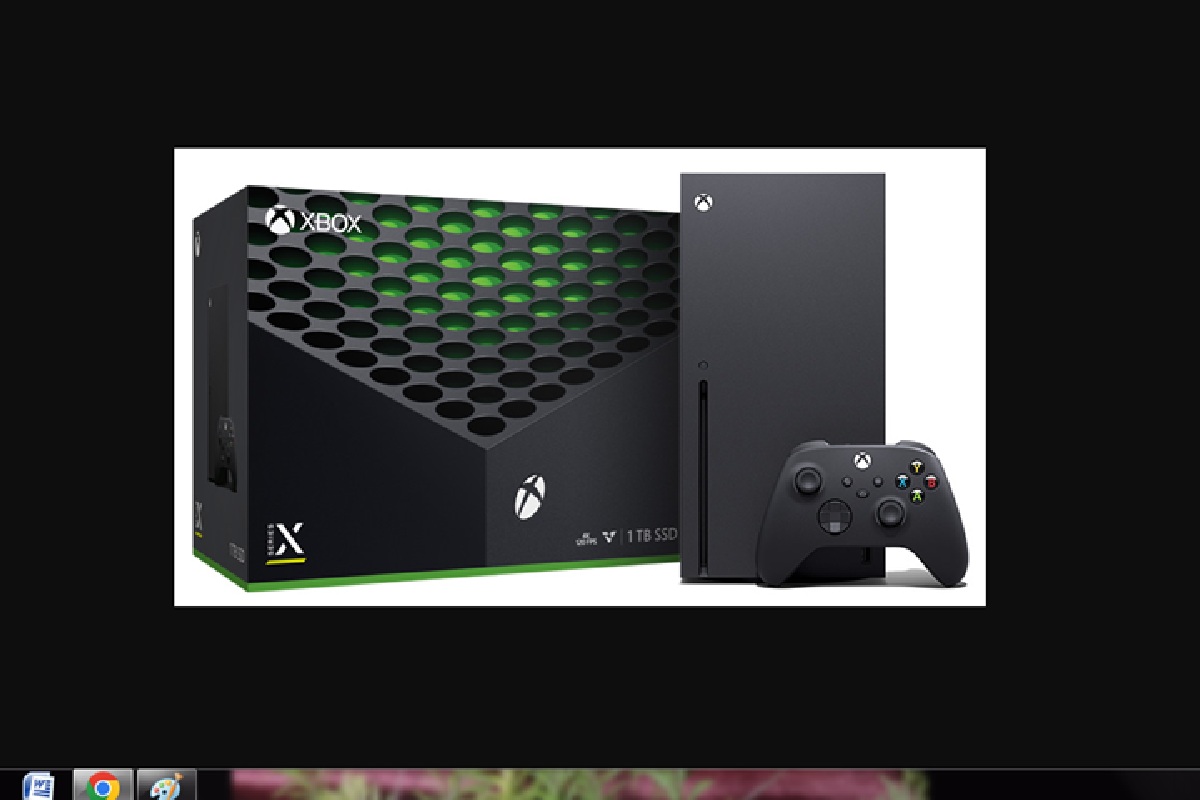
Xbox is one of the most well-known gaming consoles in the world. This means many games will be released and available for pre-order on the platform. Customers have expressed concern about canceling their pre-orders and receiving a refund. Fortunately, canceling your order within the Microsoft Store is extremely simple, and if you cancel after being charged, there are options to help you get your money back. In this article, you’ll learn how to get a refund for a pre-order on Xbox and how to cancel an Xbox pre-order.
Table of Contents
Cancel or pre-order from the Microsoft Store.
You can cancel one or more entities in a Microsoft Store order or pre-order before you are charged or the item ships. Here’s how to cancel an Xbox pre-order:
- Locate the order or pre-order in your Order history.
- Next to the thing you want to cancel, click Cancel. If you don’t see this option, you’ve already been charged for the item, but you can exchange it or get a refund.
- Check the box next to the item, then click the Cancel item button.
- Check your inbox for an email confirming the order cancellation. Check your spam or junk mail folder if you haven’t received the confirmation email within a few minutes.
How to get a refund for a pre-order on Xbox?
The balance will be deducted immediately if you have enough credit in your account to pre-order the game. You will be charged approximately 10 days before the game’s release if you use a credit card or split payments between a credit card and an account balance.
If you pay by credit card, you have up to 10 days before the game’s release date to cancel for free. This is fantastic if you decide you no longer want the game.
The remainder will be deducted from your credit card if your account balance exceeds the amount required to purchase the game. You will also obtain an email with your billing information and confirmation.
What should you do if your game does not appear in My Games & Apps?
If you have already completed the Pre-Order process and the game does not appear in My Games & Apps, you must manually search for it in the Microsoft Store. You can download the game without paying again if the purchase process is successful.
Steps
One: By pressing the Xbox button, select Home (It will lead to the Home screen)
Two: Select Store > Select Browse games.
Three: If you can’t find Store, go to the Home screen’s Add more option and select the Store tile. (You may need to add the tile manually.)
Four: Choose Search games > Enter the game’s title and begin searching.
Five: From the available games, select the pre-order edition.
Six: Click Install to begin the installation.
Now, don’t go any further if you don’t see the Install option or a price listed for purchase. Follow the steps outlined below.
One: Sign in to your Microsoft account using a web browser.
Two: To view the purchase details, navigate to Payment & billing > Order history.
Three: If your first purchase went well, the transaction would now be marked as “Completed.”
Still having difficulties installing the game? You should contact Microsoft Support.
Concluding thoughts
When you pre-order a game, you are paying for a product that has not yet been released. This will often include a release date, so you will know when to expect the game. When you purchase a Pre-Order, you will be given a blank download page with no content. Don’t get rid of it! Once the game is released, you can get your Steam key or the DRM-free download from this page. If you have lost access to the download page for your pre-order, you can find it on your Purchases page. That’s all you need to know about how to refund a pre-order on Xbox.